Showing posts with label mac os x. Show all posts

Monday, September 07, 2009

Windows Media to MP3 Conversion for Mac OS X and Linux


For the past couple years, my girlfriend has been amazingly (astonishingly) patient about a whole slew of .wma files that we've got on the network drive... backups of her CD collection made when she was a Windows user. We managed to save them right before the computer died, but she hasn't been able to listen to them when she's booted into Ubuntu or Mac OS X.

Late last month, after getting back from two weeks abroad, Marjorie said that she'd really like to have access to her music collection again (the CDs are cumbersome and stored away in boxes for our impending move back to Colorado). With that said, I did some digging around, and found some immediately helpful links (two years ago, a few google searches had turned up results that indicated too much effort was involved).

I started out by trying a couple free Mac OS X GUI applications, but these ended up being quite horrible: either they did not offer the functionality I desired, they were buggy to the point of being unusable, or they rendered audio with unlistenable artifacts.

In the end, I had to use mplayer and lame in combination. After googling around and some trial and error, I discovered the combination of mplayer options that would successfully extract the audio data from .wma files and dump them as .wav files.

I started with a shell script, but quickly changed to Python, since there were several locations for the .wma files, and none of them on nice paths. I've used this script several times since then, when more .wma files were discovered, and have yet to encounter any issues in sound quality. Once nice-to-have would be to extract .wma metadata and save it in the new .mp3 files as id3 tags...

Anyway, here's the code:


Hope someone else finds this useful and their significant others don't have to wait 2 years for their music!


Saturday, June 20, 2009

Mac OS X: Execute Shell Commands via Icon-Clicks


My main development machine is a custom PowerBook running Ubuntu natively. I use it when I'm sitting on the couch, my office comfy chair, the futon, floor, etc. Every once in a while, though, I want to work at a desk from my 24" iMac. Just to mix it up a little. However, that box is my gaming and web-browsing machine: it runs Mac OS X and that's the way I want to keep it. So, if I'm going to do work on the iMac, I need to ssh into the machines that have the environments set up for development.

In the course of an average day of writing code, I'll connect to anywhere from 1 to 5 remote machines open up 5-10 ssh sessions in a terminal to each machine. If I'm at the iMac, this get's tedious. Today, it got tedious enough for me to do somthing about it. Here's what I want: to click on a Terminal icon and have an ssh connection automatically established to the box I need to work on. This it pretty easy on Linux and Windows, but I had no idea how to accomplish this on a Mac until tonight.

I thought I'd share my solution; others may like it... but I'm betting there are some pretty cool ways of doing this that didn't occur to me -- so feel free to share yours!


Profile Hack

From previous messing about with the open command, I knew I could open Terminal.app from the terminal:
open -n "/Applications/Utilities/Terminal.app"
This got me part way there... if only I could dynamically execute a command upon login... so, yeah, I did something nasty:
vi ~/.bash_profile
And then:
if [ ! -z "$REMOTE_CONNECTION" ]; then
ssh $REMOTE_CONNECTION
REMOTE_CONNECTION=""
fi

.command Files


I was stumped at that point, until some googling revealed a nifty trick I didn't know about:
  • Create a new file in your favorite editor, using the .command extension
  • Add the commands you want executed
  • Save it and chmod 755
  • Double-click it and enjoy
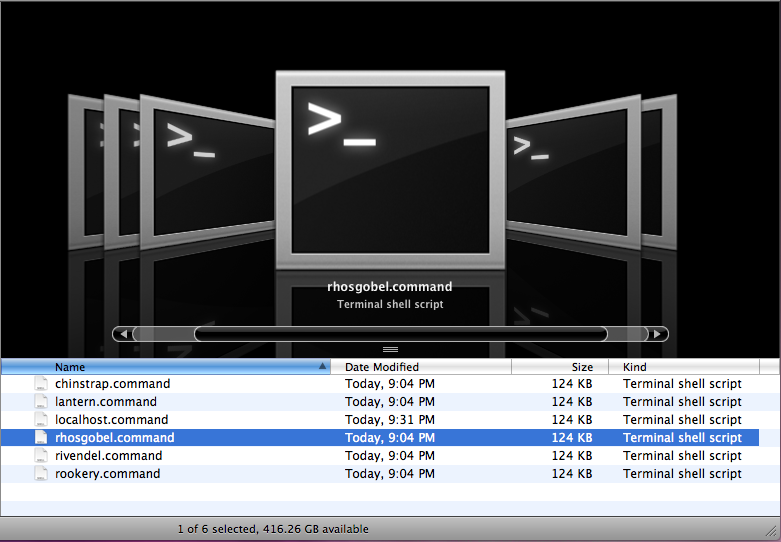
So here's what I added to rhosgobel.command:
REMOTE_CONNECTION=rhosgobel \
open -n "/Applications/Utilities/Terminal.app"

The Obligatory Icon Tweak


I then used the standard "Get Info" trick of icon copying: "Get Info" for Terminal.app, copy icon, "Get Info" for all my .command files, paste icon.


Usage


Now, I just click my "Shells" menu, choose the destination, and start working on that machine. A new window or new tab opened with that instance of Terminal.app will give me a new session to that server, without having to manually ssh into it -- this is even more convenient than having an icon to double-click!

One bit of ugly I haven't figured out how to remove: when I open a shell to a remote server, there's another shell opened at the same time with a [Process completed] message.


Wednesday, June 25, 2008

Safari 3.1.1 Installer Hosed on OS X 10.5.3

I recently tried updating my Safari to the latest version, only to discover from here and here that Apple seems to have intentionally made this a 10.5.2-only update. I looked in the "Distribution" script and confirmed that this was, in fact, the case. The obvious symptom of this was that the installer told me I couldn't install Safari on any of my drives. Nice.

On those forum posts, I also discovered this great tool: Pacifist. It's been on my backburner list for a while to find a tool that could open up and extract Mac OS X packages, so for that alone I was delighted. When combined with PackageMaker, I was able to create my own installer. Even better.

If this is useful for anyone else, I've put it up here: Safari311UpdLeo_Divmod.pkg. Do note, however, that this installer has no brains: it just puts the files where they should be. It also doesn't check for your system version, so it could potentially really screw things up. Neither I, the Divmod community, nor Divmod, Inc. are responsible in any way if this installer takes your machine to the knacker's yard. However, I am using it on 10.5.3 with no issues (so far).


Monday, August 20, 2007

Ubuntu 7.04 on iMac Core 2 Duo, 2G

Well, I busted me arse this afternoon and evening trying to get Ubuntu set up on my new iMac. It installed without issue (using the "alternate" x386 iso), but has the following critical issues:
  1. No wireless
  2. No widescreen support
  3. No sound
  4. Doesn't recognize CD/DVD drive after install and reboot
I'm kind of bummed, since I'd planned on doing dev work on this box (can we even call the iMacs "boxes"?) in native Ubuntu, and now I'll have to use parallels until the driver support is developed. Or until someone sends me a link that I've managed to miss despite incessant googling today...

Once I'm moved into the new place, I'll have a GB switch in the office and will be able to work in Ubuntu over copper. The resolution bugs me more than the lack of sound and DVD, but I can live with those for now. I guess.

But, hey -- it plays WoW and UT2004 in OS X like a champ :-)

Technorati Tags: , , ,

Tuesday, July 31, 2007

Export iTunes Playlists as .m3u Files


I got really pissed at iTunes today: it crashed and then wouldn't start back up, throwing the infamous 'locked file' error. In exasperation, I tried Songbird. It looks promising, but still needs lots of work and didn't play my music-over-Samba very well. I then got the latest Cog release.

In my experience, Cog is simple, straight-forward, performs no voodoo and just works (Troll: "Stay away from the voodoo!"). I really like the fact that I can browse the file system in Cog, and drag the albums into the list pane, but I didn't want to start years worth of playlists all over again...

At which point I remembered that a couple of years ago I blogged about parsing iTunes playlists with ElemetTree. It looks like the effbot archives no longer point to the link I updated that post with, but google cache served me well and I found Fredrik Lundh's code, repasted here:

try:
from cElementTree import iterparse
except ImportError:
from elementtree.ElementTree import iterparse
import base64, datetime, re

unmarshallers = {

# collections
"array": lambda x: [v.text for v in x],
"dict": lambda x:
dict((x[i].text, x[i+1].text) for i in range(0, len(x), 2)),
"key": lambda x: x.text or "",

# simple types
"string": lambda x: x.text or "",
"data": lambda x: base64.decodestring(x.text or ""),
"date": lambda x:
datetime.datetime(*map(int, re.findall("\d+", x.text))),
"true": lambda x: True,
"false": lambda x: False,
"real": lambda x: float(x.text),
"integer": lambda x: int(x.text),

}

def load(file):
parser = iterparse(file)
for action, elem in parser:
unmarshal = unmarshallers.get(elem.tag)
if unmarshal:
data = unmarshal(elem)
elem.clear()
elem.text = data
elif elem.tag != "plist":
raise IOError("unknown plist type: %r" % elem.tag)
return data

Which was a great start, but I needed .m3u output. After reading how simple the format was, I was off and running. The end result was all of my iTunes playlists playable by Cog, which I am using now -- as I type -- to enjoy my music, free of pain. One thing worth exploring would be how to preserve the ordering of iTunes' playlist items.

Here's the code I used to "export" the iTunes playlists as .m3u:

import re

m3uList = "#EXTM3U\n%s\n"
m3uEntry = "#EXTINF:%(length)s,"
m3uEntry += "%(artist)s - %(album)s - %(song)s\n%(filename)s\n"

def phraseUnicode2ASCII(message):
"""
Works around the built-in function str(message) which aborts when non-ASCII
unicode characters are given to it.

Modified from http://mail.python.org/pipermail/python-list/2002-June/150077.html
"""
try:
newMsg = message.encode('ascii')
except (UnicodeDecodeError, UnicodeEncodeError):
chars=[]
for uc in message:
try:
char = uc.encode('ascii')
chars.append(char)
except (UnicodeDecodeError, UnicodeEncodeError):
pass
newMsg = ''.join(chars)
return newMsg.strip()

class Playlists(object):

def __init__(self, filename=None, destDir=None):
self.lib = None
if filename:
self.lib = load(filename)
if not destDir:
destDir = './'
self.destDir = destDir

def processTrack(self, trackData):
length = trackData.get('Total Time') or 300000
song = trackData.get('Name') or 'Unknown'
artist = trackData.get('Artist') or 'Unknown'
album = trackData.get('Album') or 'Unknown'
data = {
'filename': trackData['Location'],
'length': int(length) / 1000 + 1,
'song': phraseUnicode2ASCII(song),
'artist': phraseUnicode2ASCII(artist),
'album': phraseUnicode2ASCII(album),
}
return m3uEntry % data

def processTrackIDs(self, ids):
output = ''
for id in ids:
try:
trackData = self.lib['Tracks'][str(id)]
output += self.processTrack(trackData)
except KeyError:
print "Could not find track %i; skipping ..." % id
return output

def cleanName(self, unclean):
clean = re.sub('[^\w]', '_', unclean)
clean = re.sub('_{1,}', '_', clean)
return clean

def exportPlaylists(self):
for playlist in self.lib['Playlists']:
playlistName = self.cleanName(playlist['Name'])
try:
items = playlist['Playlist Items']
except KeyError:
print "Playlist seems to be empty; skipping ..."
continue
trackIDs = [x['Track ID'] for x in items]
data = m3uList % self.processTrackIDs(trackIDs)
fh = open("%s/%s.m3u" % (self.destDir, playlistName), 'w+')
fh.write(data)
fh.close()

def exportPlaylists(filename, dest=None):
pls = Playlists(filename, dest)
pls.exportPlaylists()

With usage like the following:

>>> from iTunesExport import exportPlaylists
>>> BASE = "/Volumes/itunes/__Playlists__"
>>> exportPlaylists('%s/Library.xml' % BASE, BASE)


Update: I've tweaked the code in this post a little bit, due to a reader's questions. To run this, copy both code blocks into a single file you should be good to go.


Wednesday, November 01, 2006

Mac OS X --> Solaris via Serial

My google foo was pretty low tonight, and I had a hell of a time connecting to a Netra 240. After lots of searching, trial, and error, I'm now in like Flynn. Here's what I ended up using:
  • Sun Netra 240
  • Mac OS X 10.4, PowerBook G4
  • Keyspan USB/Serial adapter (P/N: USA-19HS)
  • Keyspan drivers
  • Sun-provided RJ-45 serial cable (I think the part number is 530-2093-01)
  • minicom (installed via Fink)
Instructions for getting connected with minicom:
  • Start minicom from the command line
  • Hit "ctl-a" an then "z"
  • Hit "o" to adjust the configuration
  • Down-arrow to the "Serial port setup" menu and select
  • Make sure that you're pointed at the right serial device and that your speed/parity setting is "9600 8N1"
  • Hit "enter" to save and go back to the menu
  • Select "Modem and dialing" and change the "Init string" to "~^M~"
  • Hit "enter" and select "Save setup as dfl", exit, and restart minicom
Here are the gotchas I ran into:
  • be sure to reboot OS X after installing the adapter drivers
  • be sure to use the right cable (I was using a Cisco RJ-45 serial cable, and it seems to be pinned differently)
  • be sure to use minicom (I tried with ZTerm, but I just don't grok GUI apps)
Once all these were in place, it was a piece of cake. With a BREAK (no keyboard for the Netra, so no "Stop-A") during boot-up, I'm ready to wipe this puppy and install Solaris 10.
Damn, Sun makes solid hardware. It's been years since I've played with their stuff. Even if Python apps don't run so well on Solaris, it's still going to be good to use these machines again.

Update: Added step-by-step instructions for connecting with minicom.